

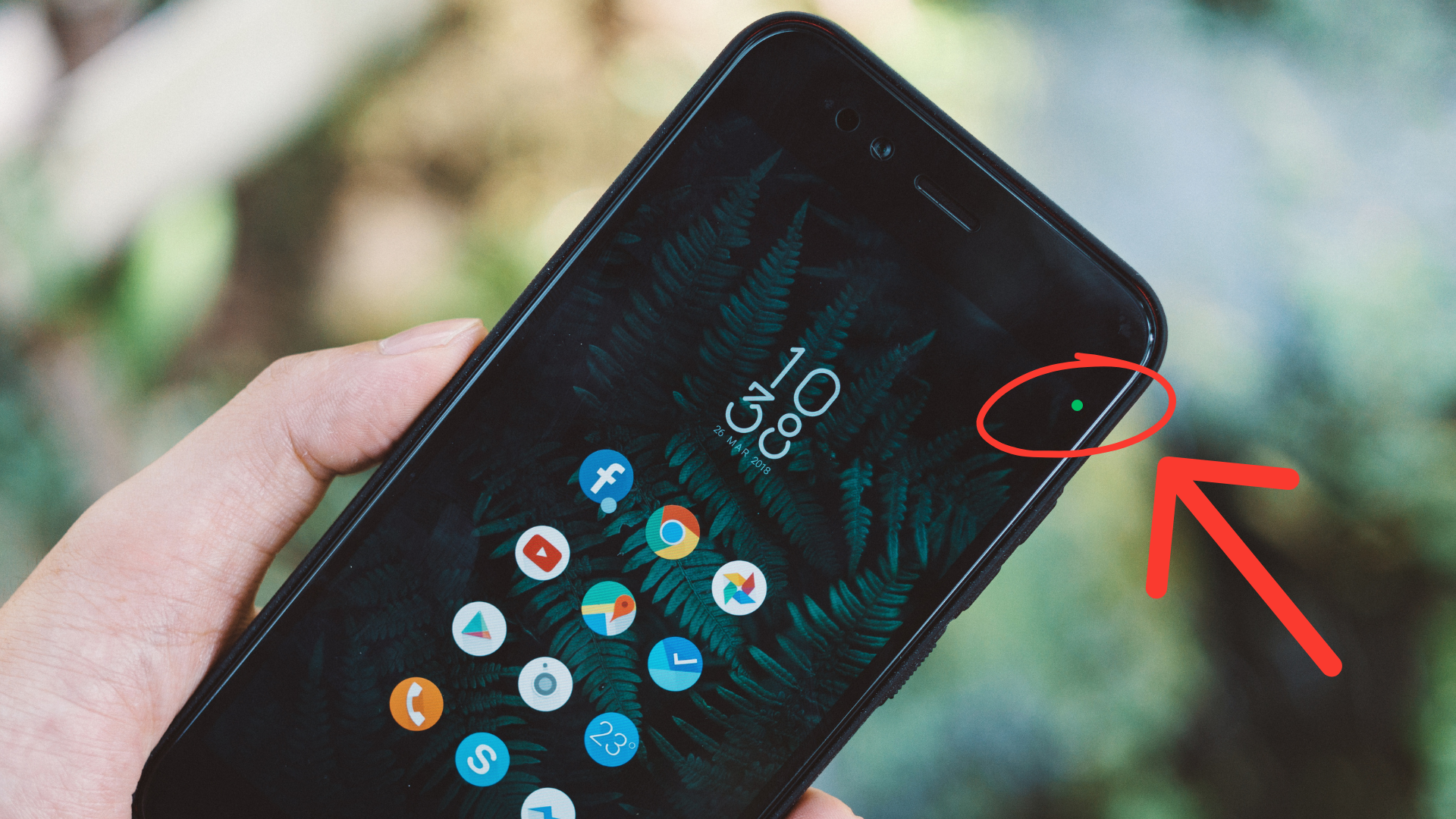
Android users have been noticing a small green dot appearing in the top corner of their phone screens, and technology experts say it is not a graphics glitch but one of the device's most important privacy tools.
The dot appears when an app is actively using the phone's camera or microphone. Experts explain that the green dot basically indicates that the device's camera or microphone is in operation, acting as a visual signal from the operating system that an application is accessing those sensors.
When the dot signals a problem
The concern arises when the dot appears while the user is not on a video call or recording audio. Sources cited in the report warn that if no application should be using the microphone or camera, it could mean someone is spying on the user, or that an app is running without their knowledge.
The simple fix
For users without technical expertise, the first step is to check which processes are currently active by opening the recent apps menu, which shows all tasks running in the background. The most immediate solution is to select the option to clear all apps automatically, which cuts off access to the camera and microphone and should make the green dot disappear right away.
If the dot persists or reappears without an obvious cause after this, a more advanced but still accessible method is needed.
Using developer options for full control
Android offers a stricter way to control device sensors, though the setting is hidden from typical users. To find it, users need to go to phone settings, open the "About phone" section, locate the option labeled "build number," and tap it several times.
This unlocks the phone's developer options. The device may ask for a security code or pattern to confirm the user wants to enable developer options, which grant access to certain advanced settings.
Inside the developer menu, there is a feature built for users who want total control. The report instructs users to find the "developer quick settings tile" option and turn on the one labeled "sensors off."

Doing this adds a new button to the phone's control center, alongside the Wi-Fi and Bluetooth toggles. Switching it on electronically blocks every app's access to the camera and microphone. According to the tutorial, this should resolve the issue, removing any trace of the green dot and ensuring no one is watching or listening without the user's explicit permission.