

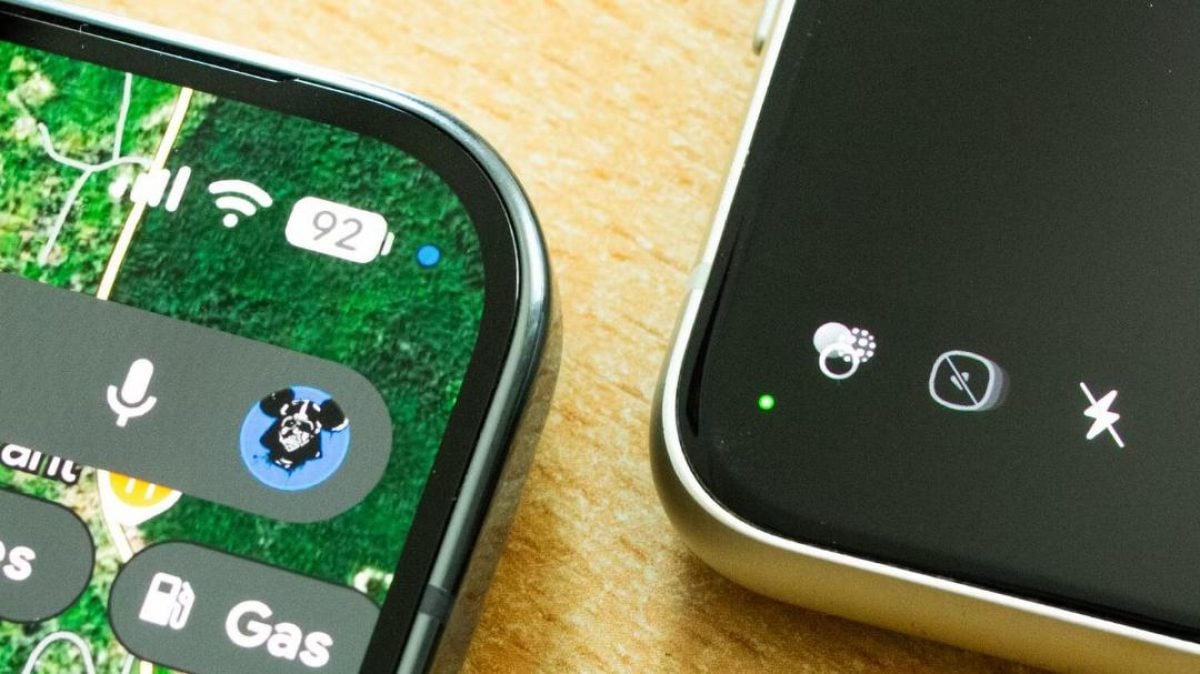
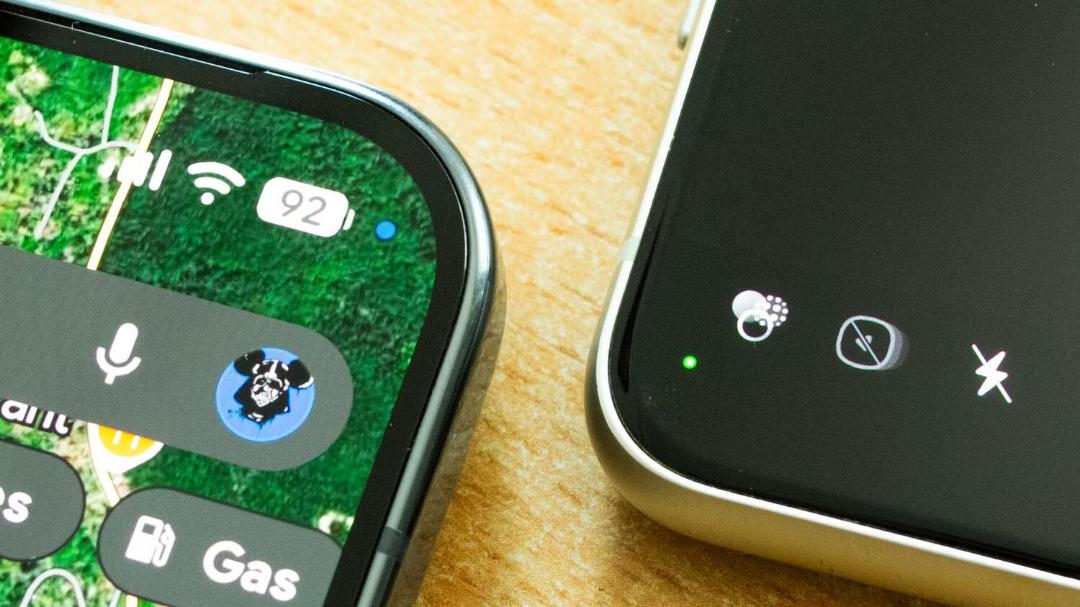
Small green or blue dots appearing in the top right corner of an Android phone status bar indicate that an application is actively accessing the device camera, microphone, or location sensors, according to HowToGeek. The technology publication writes that while the small interface element can occasionally annoy users, it serves an important security function for mobile devices.
The green dot acts as a primary privacy indicator on the right side of the status bar. It turns on whenever a mobile app accesses the camera, microphone, or both sensors simultaneously. On Google Pixel smartphones, the system displays a small green dot. Samsung Galaxy devices briefly display small camera or microphone icons that convert into a green dot after a few seconds. The same privacy feature is available on other mobile devices running Android 12 or newer operating system versions.
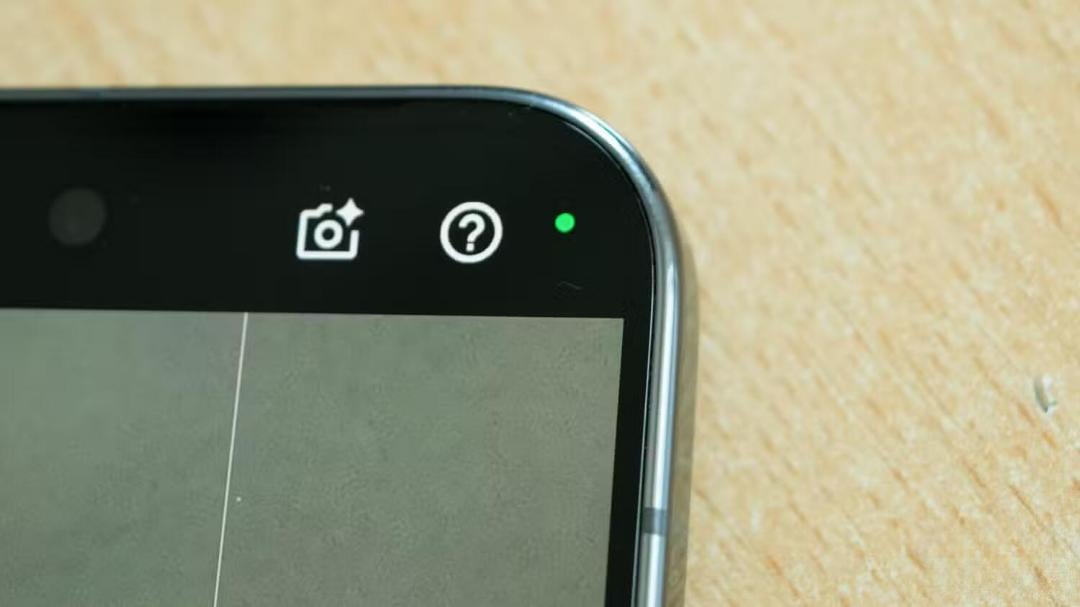
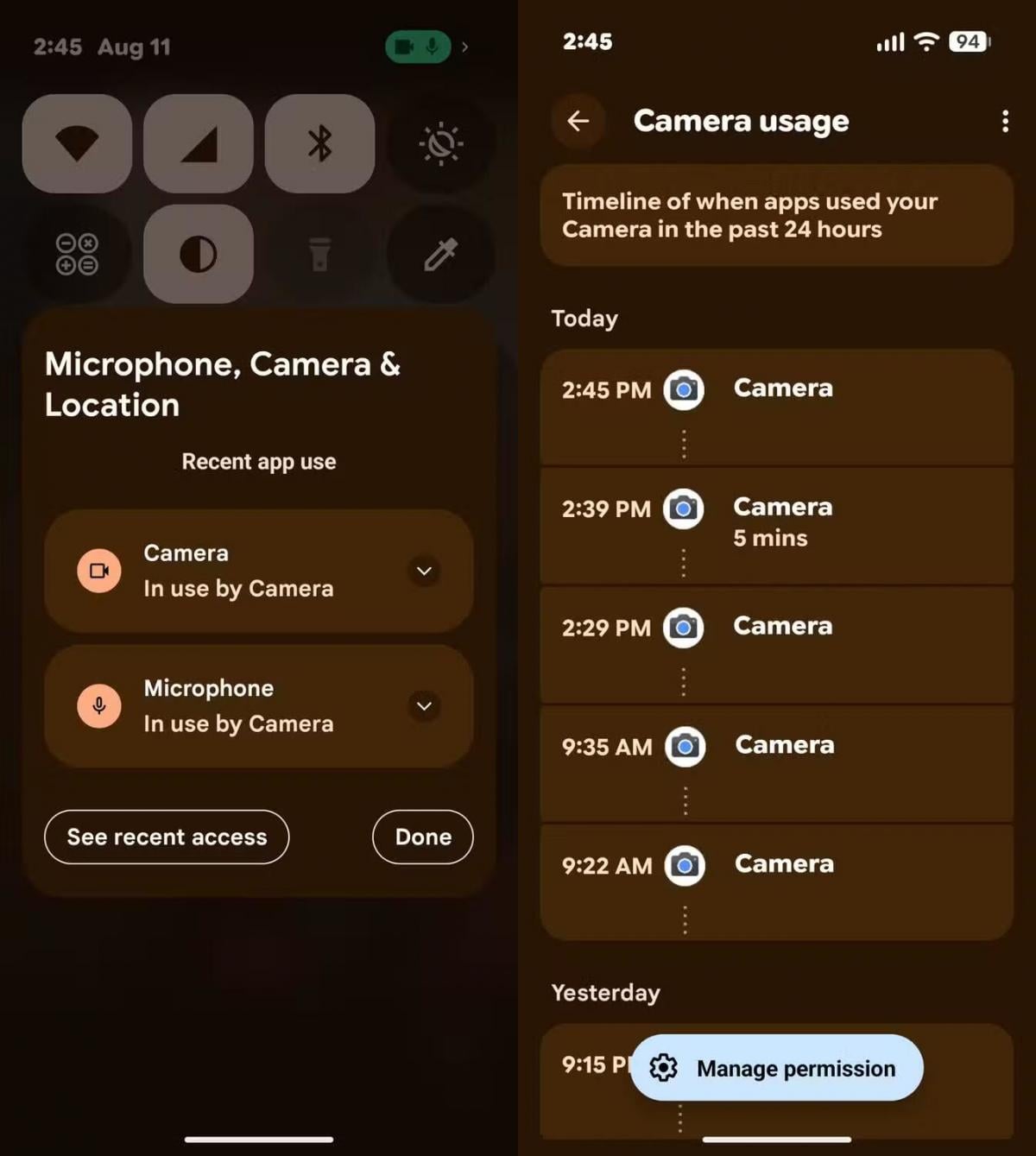
Users can interact directly with the status bar privacy indicator. Pulling down the notification panel changes the green dot back into a camera or microphone icon, or both icons if a user records video. Tapping the icon identifies the specific application currently using those hardware sensors.
On Google Pixel devices, tapping the green dot opens a pop-up window containing detailed information regarding microphone, camera, and geolocation access. Users can navigate directly from that window to application settings and revoke permissions if necessary.
Android Privacy Dashboard and Recent Access
Android also provides an option to view historical access logs through a button labeled See recent access. Selecting this button opens the system privacy dashboard, which records application requests for the microphone, camera, and location data over the previous 24 hours. The log helps users quickly detect suspicious background activity and cancel unneeded access rights.
Blue Dot Location Tracking in Android 16
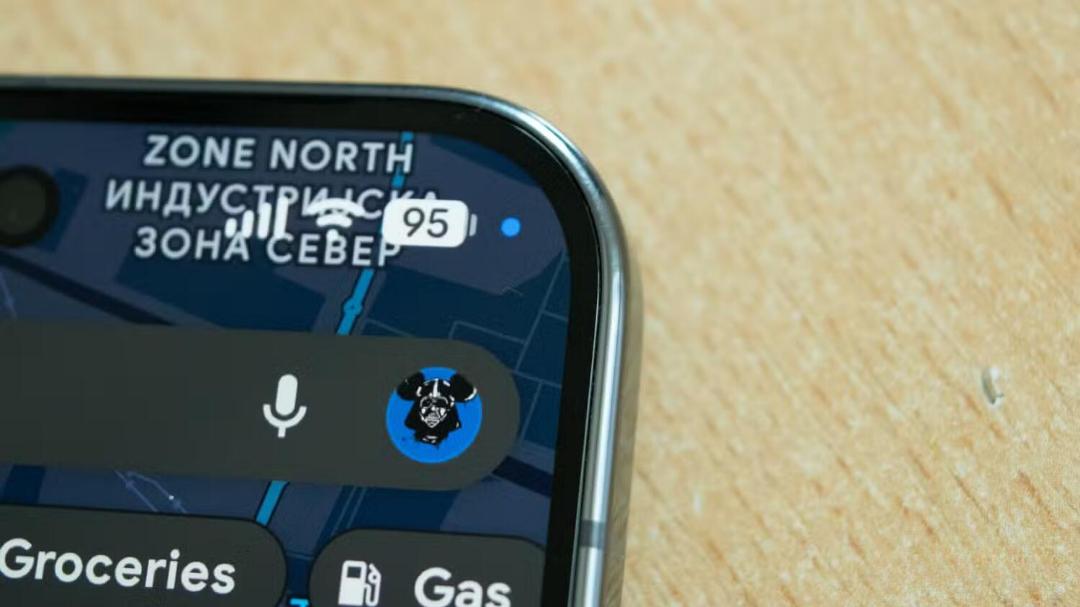
Android users may also see a blue dot in the same status bar area, indicating that an application is retrieving location data. Applications such as Google Maps, Weather, or any other app granted location permissions trigger this blue indicator when active.
The blue dot indicator was added in the Android 16 update. It operates similarly to the green dot. Opening the notification shade allows users to tap the icon to see which application is accessing location services, adjust permissions, or open the privacy dashboard to inspect access history.
Comparison With Apple iPhone Indicators
Status bar indicators are not exclusive to Android smartphones. Apple introduced similar privacy tools for iPhone users in 2020 with the release of iOS 14.
On an iPhone, an orange dot indicates that an application is using the microphone, while a green dot signals camera usage. If an application accesses both the camera and microphone at the same time, the iPhone displays a green dot. Apple uses a small arrow icon rather than a dot to indicate active location tracking.
Unexpected colored dots should not be ignored by device owners. HowToGeek notes that the indicators offer a fast method to confirm which applications are accessing sensitive hardware and to modify permissions whenever required.